AI / LLM Settings
Desktop users
This page configures model connections for chat and image understanding. Desktop AI is included in the application; models are downloaded as needed. See built-in desktop AI.
Built-in Connection
TrailSnap includes a built-in AI connection that works out of the box. It uses the MiniCPM-V-4_6-Q4_K_M multimodal model, supporting image content understanding, tag generation, and other visual tasks.
The built-in connection is shown on the Settings → General → AI Configuration → LLM Connection page with a "Built-in" badge. Built-in connections cannot be edited or deleted.
If you need to use a third-party API, you can add a new connection.
Adding a Connection
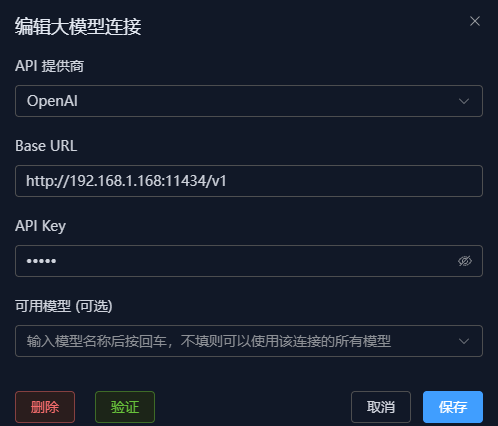
Go to Settings → General → AI Configuration → LLM Connection to add a new LLM connection.
- Select the API type, e.g.
OpenAI,Ollama, etc. - Fill in the base URL and API key.
- Fill in the model name (optional — if left empty, all models available with that API key can be used), e.g.
gpt-3.5-turbo,qwen3.5:4b, etc. - Click the verify button; a success message will appear if the connection works.
AI Chat Configuration
Go to Settings → General → AI Configuration → AI Chat to configure the default model used by the AI assistant (bottom-right corner).
Smart Analysis Configuration
Go to Settings → General → AI Configuration → Smart Analysis to select the connection and model for image content understanding and tag generation. This is a relatively simple task, so a small model is sufficient.
Due to privacy concerns, be cautious when using cloud models from various platforms. Using a locally deployed model is recommended, such as Ollama with qwen3.5:4b, or a local LLM service like vllm.
ollama run qwen3.5:4b- Base URL: The API base URL for the vision model, e.g.
http://127.0.0.1:11434/v1 - API Key: The API key for the vision model. For local Ollama, you can use:
empty - Model Name: The vision model name, e.g.
qwen3.5:4b
Creating a Processing Task
After configuration, go to Task Management → Smart Analysis, select Force Redo or Run Missing Tasks to start analyzing photos (to save resources, screenshots are automatically skipped during analysis).
Viewing Analysis Results
- Go to Toolbox → Quality Cleanup — this shows all AI-analyzed photos sorted by score.
- Click a photo to open the detail panel, then click the top-right button and select "View AI Analysis Results".
- On the home page, the "On This Day" module shows photos from past years (if available), sorted by score with AI-generated captions.